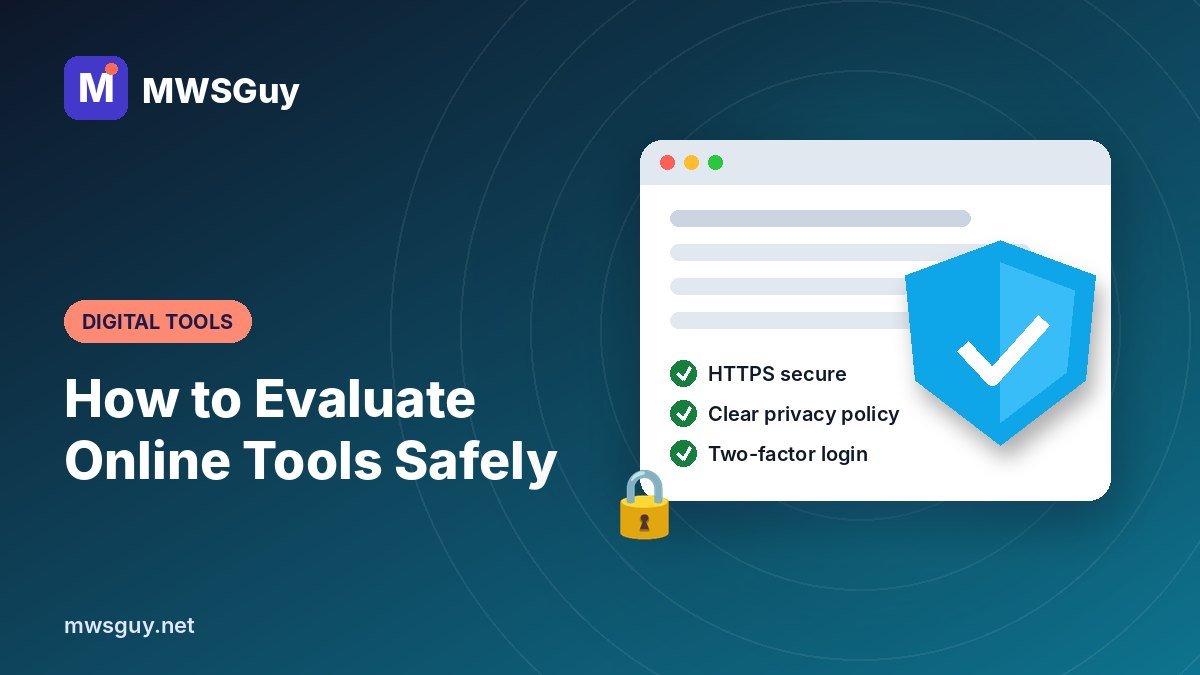
Online tools can save time, help you stay organized and make everyday tasks easier. But not every app or website is equally trustworthy. Before you upload files, create an account or connect a tool to your email, it is worth spending five minutes checking that it is safe and right for you.
Use this checklist whenever you are considering a new online tool or digital service.
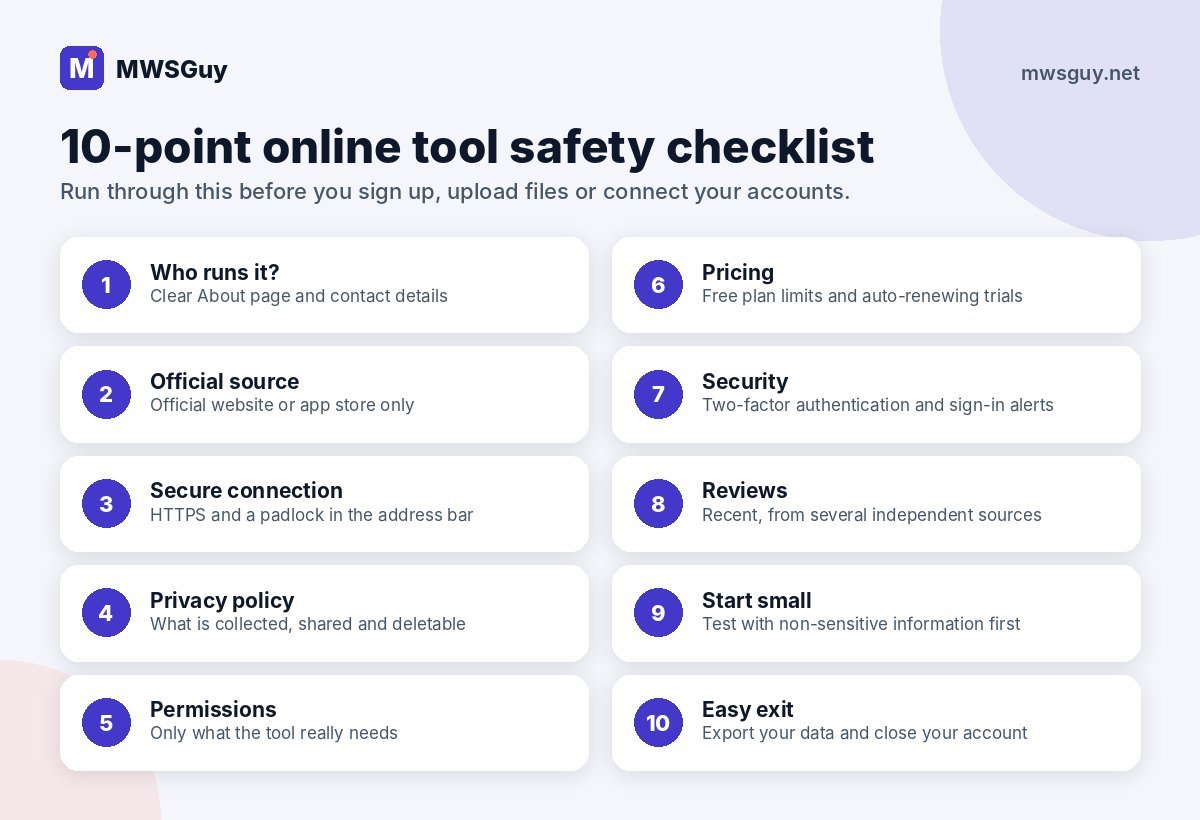
1. Confirm who is behind the tool
A trustworthy service makes it easy to see who runs it. Look for:
- An About page that explains the company or developer.
- Clear contact details, such as a support email or help center.
- A consistent brand name and website address.
Be cautious of tools with no company information, no contact details, or a website address that imitates a well-known brand with small spelling changes.
2. Use the official website or app store
Download apps only from official app stores or the provider’s official website. Search results and ads can sometimes lead to look-alike pages. Typing the address yourself or using a bookmark is a simple way to avoid fake sites.
3. Check for a secure connection
The address bar should show https:// and a padlock icon. A secure connection encrypts the data you send. It does not guarantee a site is trustworthy, but a site without it should never receive passwords or personal information.
4. Read the privacy policy (the short version)
You do not need to read every word. Focus on these questions:
- What data is collected? Is it only what the tool needs to work?
- How is it used? Is your data used to train systems, show ads or shared with partners?
- Can you delete it? Look for a clear way to delete your account and data.
- Where is it stored? Some services explain which countries store your data.
5. Review the permissions it asks for
When an app or browser extension asks for access, ask yourself whether the permission makes sense. A note-taking app does not need your contacts. A photo editor does not need access to your email. If a permission seems unrelated to the tool’s purpose, decline it or choose another tool.
6. Understand the pricing
“Free” tools are often supported by advertising, data use or paid upgrades. Check:
- What features are included in the free plan.
- Whether a free trial turns into a paid subscription automatically.
- How to cancel, and whether there are cancellation fees.
7. Look for security features
Good services protect your account. Helpful features include:
- Two-factor authentication (2FA) for logging in.
- Alerts for new sign-ins.
- Clear information about how the service handles security issues.
8. Read recent reviews from multiple sources
Look at app store reviews, independent reviews and community discussions. Focus on recent comments and look for patterns — for example, repeated complaints about billing or support. Be wary of a large number of very short, overly positive reviews posted at the same time.
9. Start small
When you are trying a new tool, avoid uploading sensitive files or connecting important accounts on day one. Test it with non-sensitive information first, and only grant wider access once you are comfortable.
10. Know how to leave
Before committing, check that you can export your data and close your account easily. A tool that makes it hard to leave can become a problem later.
Quick checklist
| Question | Good sign | Warning sign |
|---|---|---|
| Who runs it? | Clear company info and contact details | No About page or contact information |
| Where did you get it? | Official app store or website | Unknown download links or pop-ups |
| Privacy | Clear policy with deletion options | No policy, or vague data sharing |
| Permissions | Only what the tool needs | Access unrelated to its purpose |
| Security | 2FA and sign-in alerts | Password only, no account protections |

Frequently asked questions
How can I tell if a website is legitimate?
Check that the address is spelled correctly, the site uses HTTPS, it has clear company and contact information, and independent reviews describe it positively. When in doubt, go directly to the official website rather than following a link.
Are free online tools safe to use?
Many free tools are safe, but it is important to understand how they make money. Read the privacy policy to see whether your data is used for advertising or shared with partners, and avoid uploading sensitive information until you trust the service.
What should I do if I already used an unsafe tool?
Change the password for that account and any account that uses the same password, enable two-factor authentication, revoke the tool’s access in your account settings, and monitor your accounts for unusual activity.
Related reading: streaming sites are one of the most common places people run into unsafe tools. Learn the 9 warning signs of fake streaming sites.
Final thoughts
A few minutes of checking can protect your data, your devices and your money. Before using any third-party service, review its official information, privacy practices, terms and safety requirements. For more practical resources, explore our Digital Tools section.