Few things ruin a movie night faster than a spinning wheel. Buffering happens when your device cannot download video as fast as it plays it, so the player pauses to catch up. The good news: in most homes the cause is one of a handful of fixable problems, and you can usually find it in under ten minutes.
Work through the fixes below in order. They start with the quickest checks and move on to the changes that make the biggest long-term difference.
Quick diagnosis: is it your device, your Wi-Fi or the service?
Before changing anything, spend one minute narrowing down where the problem lives:
- Only one app buffers while others play fine → the problem is likely the app or the service. Jump to fixes 1, 2 and 12.
- Every app buffers on one device, but your phone streams fine → it is the device or its connection. See fixes 3, 4, 6 and 7.
- Everything buffers on every device → it is your home network or your internet plan. See fixes 5 and 8–11.
- It only happens in the evening → it is probably congestion, either in your home or on your provider’s network. See fixes 8, 9 and 11.
1. Restart the app and the device
It sounds too simple, but streaming apps and smart TVs run for weeks without a proper restart. Fully close the app (not just switch away from it), then power the device off, wait 30 seconds and turn it back on. On many smart TVs, pressing the power button only puts the TV to sleep, so unplug it for a full reset.
2. Check whether the service itself is having problems
If a major platform is struggling, no amount of router tweaking will help. Look at the service’s official status page or official social media account, and try a different app. If everything else streams normally, wait and try again later.
3. Test your real internet speed
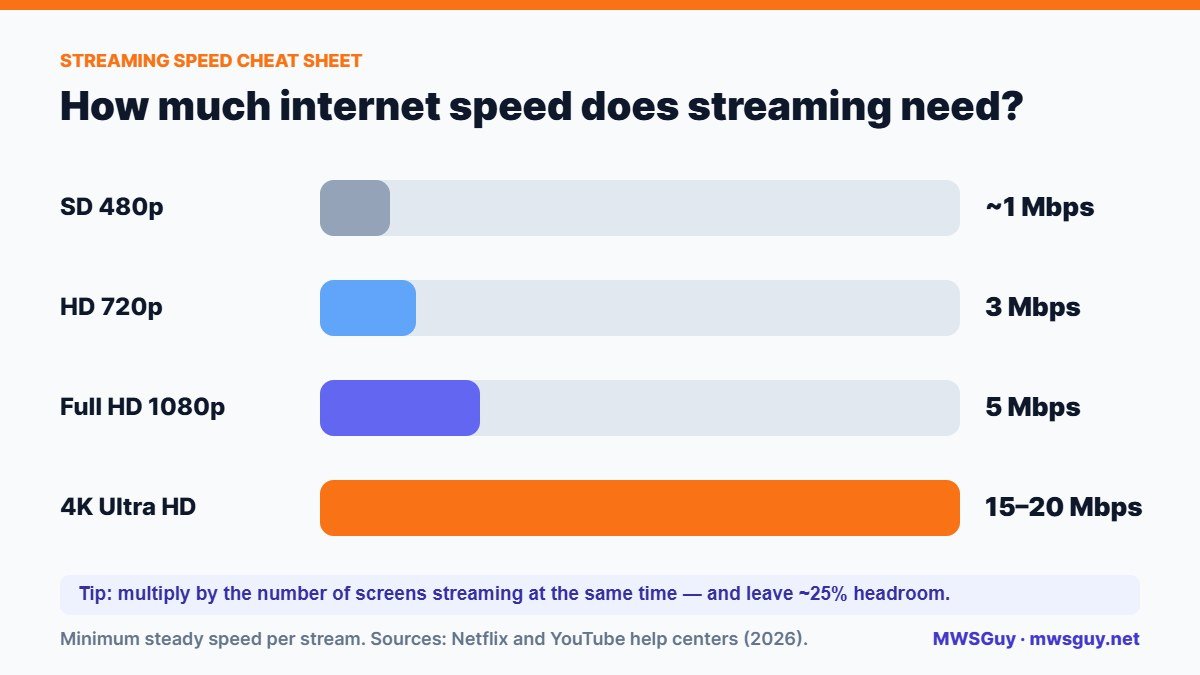
Run a speed test on the same device that is buffering, at the time it is buffering. Your plan’s advertised speed is the maximum you can get, not what reaches your TV through two walls. As a rough guide from the major platforms’ help pages:
| Video quality | Steady speed needed (per stream) |
|---|---|
| SD (480p) | About 1 Mbps |
| HD (720p) | About 3 Mbps |
| Full HD (1080p) | About 5 Mbps |
| 4K Ultra HD | 15–20 Mbps |
Remember that these numbers stack. Two people watching 4K while someone else is on a video call can easily need 40–50 Mbps at the same moment.
4. Lower the video quality for now
Most apps let you choose playback quality in the settings, either per video or per profile. Dropping from 4K to 1080p cuts the data you need by roughly two thirds and is often hard to notice on a smaller screen. If the stream becomes smooth, you know speed is the bottleneck.
5. Restart your router and modem
Unplug the router (and the separate modem, if you have one), wait 30 seconds, plug the modem back in first, wait for its lights to settle, then reconnect the router. This clears memory, drops stuck connections and often picks a less crowded Wi-Fi channel.
6. Move closer to the router, or move the router
Wi-Fi weakens quickly through walls, floors, mirrors and appliances. The best spot for a router is high up, central and in the open, not inside a cabinet or behind the TV. If your streaming device is far away, a mesh Wi-Fi system or a quality range extender can help.
7. Use a cable or the 5 GHz band
An Ethernet cable is the single most reliable fix for a TV or console that stays in one place. If a cable is not practical, connect to your router’s 5 GHz (or 6 GHz) network instead of 2.4 GHz. It is faster and less crowded, though it does not travel as far.
8. Pause other heavy traffic
Large game downloads, cloud backups, system updates and other streams all compete for the same connection. Schedule big downloads for overnight, and check whether a computer is quietly syncing gigabytes of photos in the background.
9. Kick unknown devices off your Wi-Fi
Open your router’s app or admin page and look at the list of connected devices. If you see devices you do not recognise, change your Wi-Fi password and use WPA2 or WPA3 security. Neighbours borrowing your connection can quietly eat your bandwidth.
10. Update the app, the device and the router
Outdated software can cause playback bugs and poor network performance. Update the streaming app, your TV or streaming stick’s system software and your router’s firmware. Older streaming sticks may simply be too slow for modern apps, especially in 4K.
11. Test without your VPN or ad blocker
A VPN adds an extra hop that can slow your connection, and some services limit playback through VPN servers. Some DNS-level ad blockers can also interfere with how video is delivered. Turn them off briefly to test. If the problem disappears, choose a closer VPN server or add an exception.
12. Clear the app cache or reinstall it
On Android TV and many smart TVs you can clear an app’s cache from the system settings. On other devices, deleting and reinstalling the app does the same job. You will need to sign in again, so have your password ready (ideally in a password manager).
When to call your internet provider
If a wired speed test is consistently far below what you pay for, or your connection drops several times a day, contact your provider. Share your speed test results and the times the problems happen. Ask whether there is a known outage, whether your modem is still supported, and whether there is congestion in your area.
A word about “free” streaming sites
Unofficial streaming sites often buffer more because they run on overloaded servers, and they are packed with pop-ups and fake download buttons. If a site keeps buffering and keeps asking you to install a “player” or “codec”, close it. Our guide to spotting fake and unsafe streaming sites explains the warning signs, and our streaming options explainer covers legal free, ad-supported choices.
Frequently asked questions
Why does my video buffer when my internet is fast?
Your plan may be fast, but the speed reaching your device can be much lower because of weak Wi-Fi, other devices using the connection or an outdated streaming device. Test speed on the device itself, close to and far from the router, to see the difference.
How much internet speed do I need for 4K streaming?
Major platforms recommend roughly 15 to 20 Mbps of steady speed for a single 4K stream. Add more for every other stream, video call or large download happening at the same time.
Does a VPN cause buffering?
It can. A VPN adds distance and processing between you and the streaming service. Choosing a nearby server usually helps, and some services do not support playback through VPNs at all.
Why does streaming buffer more at night?
Evening is peak time, when more people in your home and your neighbourhood are online. Your provider’s local network can become congested. A wired connection and lower video quality help, and persistent evening slowdowns are worth reporting to your provider.
Final thoughts
Most buffering comes down to three things: weak Wi-Fi, too many things sharing the connection, or an outdated device. Start with a restart and a speed test, then work through the list. Once your setup is smooth, our guide on how to choose what to watch next can help with the harder problem — picking something.